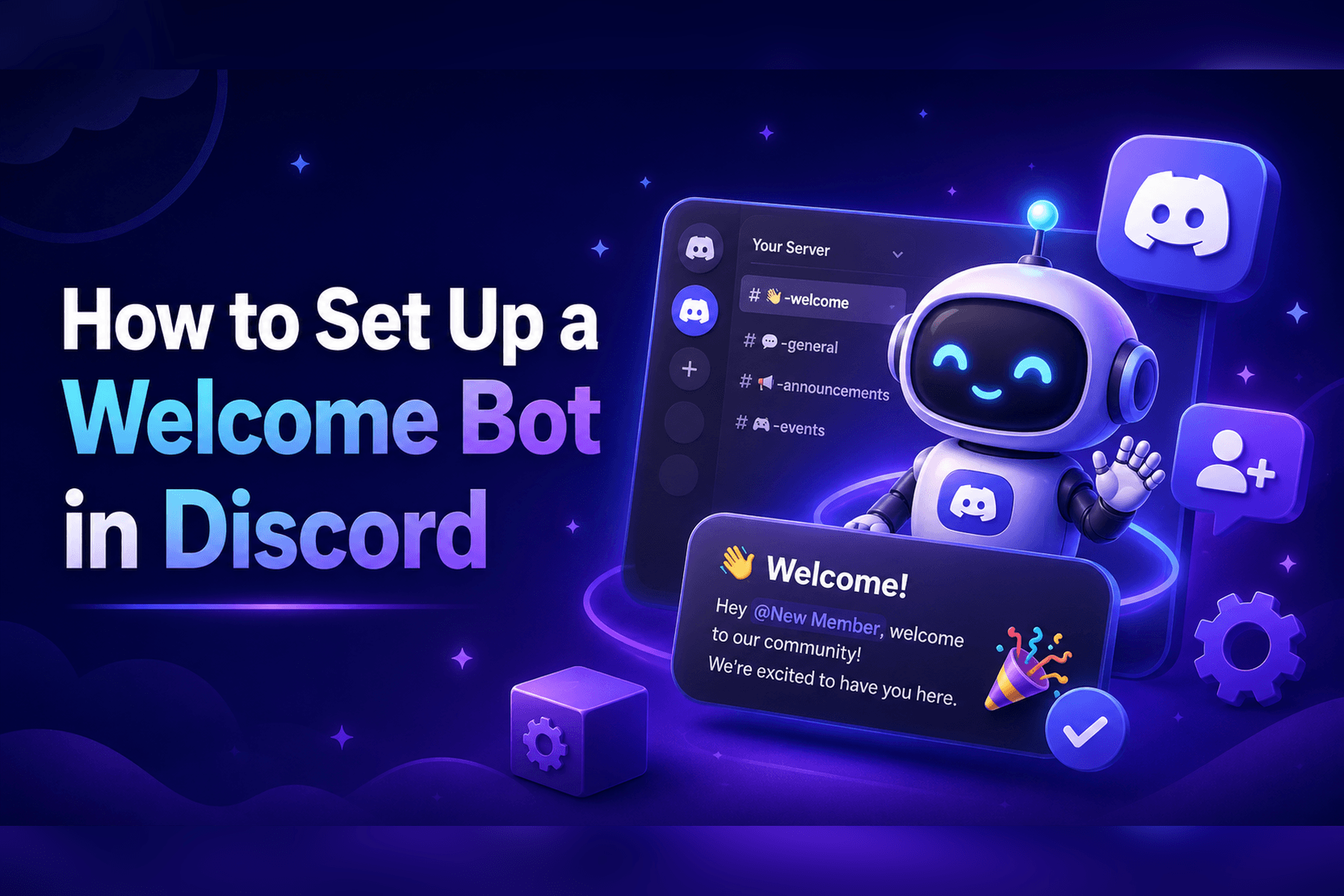
Setting up a welcome bot in Discord takes about five minutes: invite a bot like Welcomer, point it at a welcome channel, enable the welcome module, write your greeting, and send a test message. That is the whole flow, and the step-by-step walkthrough below covers each part.
The rest of this guide handles what most tutorials skip: which welcome bot actually fits your server, how to add a welcome image, the permission settings that silently break everything, and how to pair a bot with Discord's own built-in onboarding so the two don't fight each other.
A welcome bot is a Discord bot that automatically greets new members when they join — posting a text or image welcome, optionally sending a DM, assigning a role, or pointing them to your rules. You might not need one, though. Discord has native onboarding (a Welcome Screen plus Rules Screening) that greets new members and points them to your channels and rules without installing anything. Reach for a bot when you specifically need welcome images, DM greetings, auto-roles, goodbye messages, or invite tracking. We cover the native setup near the end, and the two work best together.
How to Set Up a Welcome Bot, Step by Step
We'll use Welcomer for the walkthrough because it's the most welcome-focused of the popular options, but the flow is nearly identical for MEE6 and Carl-bot. If you haven't picked a bot yet, compare Welcomer, MEE6 and Carl-bot below and come back.
- 1
Choose a welcome bot
Decide what you actually need first: plain text greetings, image welcomes, DMs, auto-roles, or goodbye messages. For image welcomes, Welcomer or ProBot. For free, highly customizable text and embeds, Carl-bot. For an all-in-one bot you may already run, MEE6. The full comparison breaks down each one.
- 2
Invite the bot to your server
Go to the bot's official site (for Welcomer, welcomer.gg), click Invite or Add to Server, pick your server, and approve the requested permissions. You need to have the Manage Server permission to add a bot. Keep the default permissions unless you have a reason to trim them.
- 3
Create or pick a welcome channel
Make a dedicated channel like #welcome or #general where greetings will post. A separate channel keeps welcomes visible and easy to mute. Posting to your busiest channel works too if you want maximum visibility.
- 4
Enable the welcome module and set the channel
Open the bot's dashboard, find the Welcome (or Greetings) module, and toggle it on. Select the channel you just chose from the dropdown. On Welcomer this is the dashboard's Welcomer section, on MEE6 the Welcome plugin, on Carl-bot the Welcome module in the left menu.
- 5
Write your welcome message
Customize the greeting using placeholder tokens the bot fills in automatically:
{user}to mention the new member,{server}for the server name, and a member-count token. Keep it short, warm, and pointed at one next action. The message-writing section has tested examples. - 6
Add a welcome image (optional)
If your bot supports image welcomes, enable them and pick a background. The image usually auto-fills the member's username and avatar. This is where the Embed Links and Attach Files permissions matter (see troubleshooting).
- 7
Save and test it
Save the configuration, then trigger a test. Welcomer has a built-in /test command that previews your current setup. On other bots, the reliable test is to leave and rejoin with an alt, or ask a friend to join. If nothing posts, jump to troubleshooting.
That's a working welcome bot. The sections below help you pick the right one, write a greeting people actually read, and fix it when it goes quiet.
Welcome Bots Compared
All four of these bots greet new members. They differ on image welcomes, how much you can customize for free, and whether they're a single-purpose tool or a full suite you run for everything.
| Welcomer | MEE6 | Carl-bot | ProBot | |
|---|---|---|---|---|
| Welcome images | Core feature | Premium | Embeds only | Yes, customizable |
| DM welcome | Yes | Yes | Yes | Yes |
| Auto-role on join | Yes | Yes | Yes | Yes |
| Goodbye message | Yes | Yes | Yes | Yes |
| Free tier | Generous | Limited (premium upsell) | Very generous | Generous |
| Best for | Image welcomes | All-in-one server | Free, custom text and embeds | Image welcomes |
Welcomer is purpose-built for greetings, so image welcomes and the configuration around them are its strongest area. MEE6 makes sense if you already run it for moderation and leveling and just want to switch on its Welcome plugin, though richer welcome images sit behind premium. Carl-bot is the pick when you want the most control over text and embed greetings without paying, at the cost of fancy generated images. ProBot is the other strong option for image-based welcomes.
Don't run two welcome bots at once. If you previously set up MEE6 and now want Welcomer's images, disable the old bot's welcome module first, or every new member gets greeted twice.
Write a Welcome Message That Actually Works
A welcome message has one job. Make the new member feel seen, then tell them exactly what to do next. Most servers fail at the second half and post a generic "Welcome!" that leads nowhere.
Welcome bots fill in placeholder tokens that get swapped for real values when someone joins. The exact syntax varies by bot (Carl-bot, for example, uses {mention} and {server(members)}), but the concept is identical everywhere. Using the common MEE6-style tokens as the example, the three you'll reach for constantly:
{user}mentions and pings the new member by name{server}inserts your server's name{count}shows the total member count after they join ("you're our 500th member")
The pattern that works is greeting plus one clear next step. Greet them, then point at a single channel: read the rules, introduce yourself in #intros, grab a role in #roles. One action, not five.
If you'd rather not write from scratch, our free Discord Welcome Message Generator gives you copy-and-paste templates in several styles (clean, gaming, aesthetic, hype) with the {user}, {server}, and {count} tokens already in place. Build the message there, copy it, and paste it straight into your bot's welcome field. It runs entirely in your browser, so there's nothing to install.
Welcome Images and Embeds
Image welcomes are the main reason people add a bot instead of using Discord's native screen. A generated card with the member's avatar and a custom background gets far more attention than a line of text.
Example Discord welcome image card showing a new member's avatar and username over a custom background with a greeting
Two things have to be true for images and rich embeds to send. First, the bot needs the Embed Links and Attach Files permissions in the welcome channel, not just server-wide, since channel overrides can quietly block them. Second, the welcome module's image option has to be enabled in the dashboard and pointed at a background. Welcomer documents the available backgrounds and image options in its configuration docs.
If you want a plain embed rather than a generated image, that's lighter and still looks polished: a colored sidebar, your server name, and the greeting text. Carl-bot is especially good at custom embeds for free.
Common Welcome Bot Problems and Fixes
When a welcome bot goes silent, it's almost always one of a handful of causes. Run through these in order.
Nothing posts when someone joins. Check, in this order: (1) the bot lacks Send Messages or Embed Links permission in the welcome channel, (2) the welcome module is toggled off or pointed at the wrong channel in the dashboard, (3) a channel permission override is blocking the bot even though its server role looks fine.
The other frequent issue is auto-roles not applying. Discord assigns roles by hierarchy, so the bot can only grant a role that sits below its own role. Open Server Settings, then Roles, and drag the bot's role above any role it's meant to assign. If the bot's role is at the bottom, it can't give out anything.
Two smaller gotchas: many dashboards require you to click Save at the bottom of the page, and changes don't apply until you do. And testing by rejoining on your own main account sometimes won't fire if the bot ignores existing members, so test with a true first-time join.
Pair It With Discord's Native Welcome
A bot handles greetings, images, and roles. Discord's built-in tools handle something a bot can't do as cleanly: gating the server until people agree to your rules. Use both.
Rules Screening makes new members read and explicitly agree to your rules before they can talk, react, or DM anyone in the server. Discord recommends it over old bot-based verification gates because, unlike those gates, it also blocks DMs to your members until they accept. You can set up to 16 rules under Server Settings, then Safety Setup, in the Moderation section. Discord covers the specifics in its Rules Screening FAQ.
The Welcome Screen is Discord's navigation panel, the first thing new members see. It shows a short description and up to five recommended channels to start with. It's navigation, not enforcement. The Welcome Screen orients people, while Rules Screening gates them, and it pairs naturally with a bot greeting that welcomes each member by name.
If you haven't written your rules yet, our Discord rules template tool gives you copy-and-paste rule sets you can drop straight into Rules Screening.
After the Welcome: Actually Keep Them
A welcome message is the first five seconds of a much longer relationship. Most servers nail the greeting and then lose the member to silence a week later. The greeting is table stakes. Retention is the real game.
The servers that keep new members give them a reason to come back and talk in the first few days. That's where structured engagement helps: a steady cadence of events, and giveaways that reward people for actually participating rather than just joining. We wrote a full playbook on how to grow a Discord server that goes deep on turning new arrivals into regulars.
If giveaways are part of that plan, ScopliDrop runs task-based Discord giveaways where entries reward real activity (messages, voice time, invites) instead of a one-time join, with built-in anti-fraud so a fresh wave of members doesn't mean a wave of alt accounts. It's a different job from a welcome bot, and it's what happens after the welcome lands.
Start Greeting New Members the Right Way
A good welcome is a quick win: pick a bot, point it at a channel, write a greeting with one clear next step, and test it. Pair it with Discord's native Rules Screening so the server stays safe, and you've covered the first impression completely.
Build your greeting in the free Discord Welcome Message Generator, grab a rule set from the Discord rules template, and when you're ready to turn those new arrivals into active members, see how to grow your Discord server.