What Is a Discord Giveaway Template?
A Discord giveaway template is a saved snapshot of a giveaway's configuration. It stores the tasks, prize format, winner count, referral settings, role pings, and every other detail, so you can reuse the whole setup for future giveaways without rebuilding from scratch. Templates turn what takes 10 minutes the first time into a 30-second launch every time after.
With ScopliDrop, you build a giveaway once, save it, and every future giveaway with similar structure takes under a minute to queue. And if your server runs giveaways the same way every time, promote one template to be the server quickstart so every new giveaway on that server auto-loads from it, both on the dashboard and via the /giveaway taskless Discord command. This guide covers both template types the platform supports, how to build and use them, the quickstart layer that sits on top, and the best practices that keep a template library lean and useful.
The Two Kinds of Templates in ScopliDrop
Not every Discord giveaway bot with templates ships them the same way. ScopliDrop uses two distinct systems that work together, and understanding the difference is the key to using them well.
| Template Type | What It Stores | When to Use |
|---|---|---|
| Task Template | A task lineup (e.g., "Follow X + Join Discord + Watch YouTube") | Always, if your giveaway has tasks. ScopliDrop stores every task set as a task template, so you pick one whenever tasks are involved. |
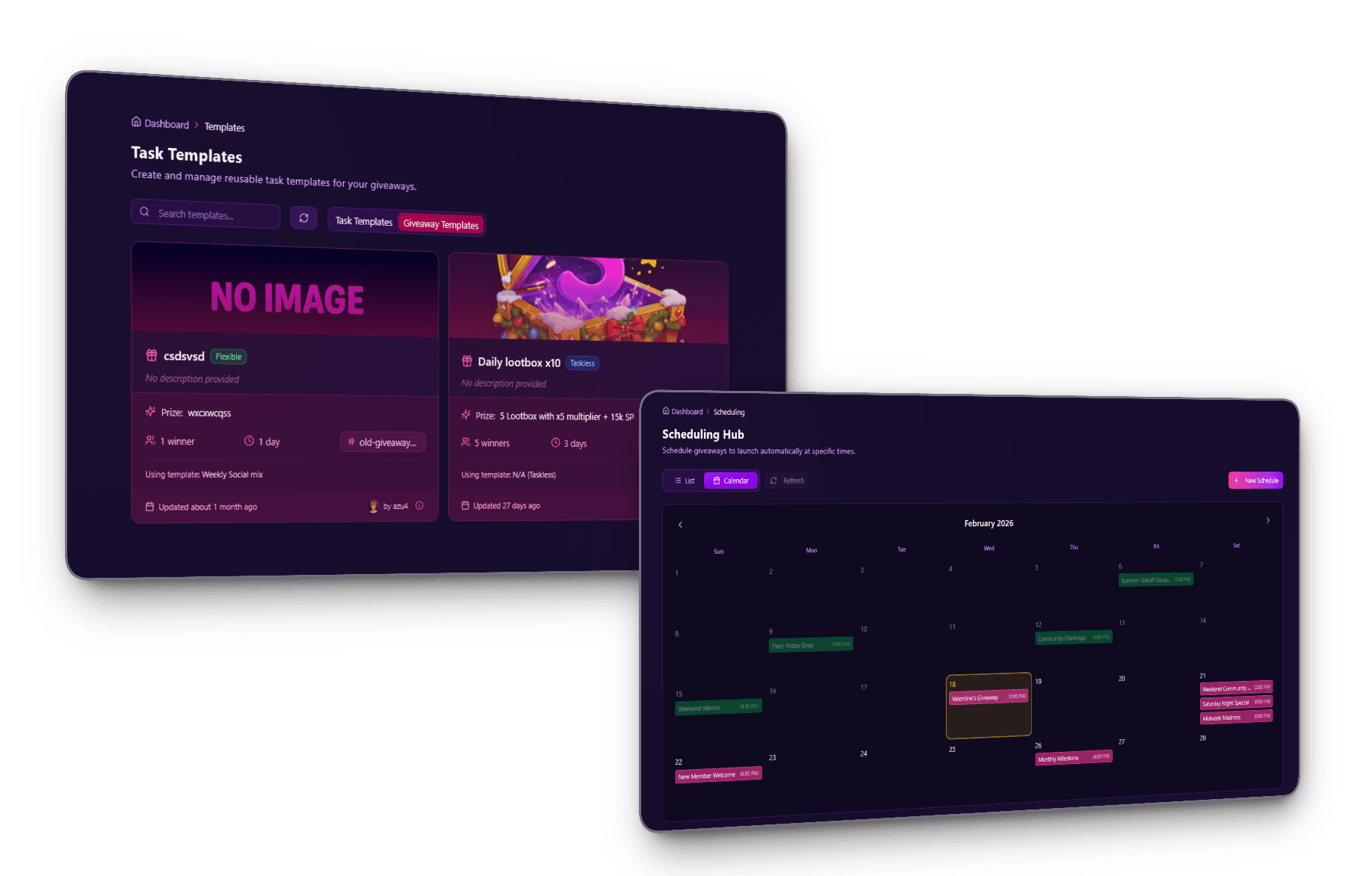
| Giveaway Template | A complete giveaway config including prize, winner count, entry mode, referral settings, image, role pings, plus a link to a task template | When you want to launch an entire giveaway with one click, reusing everything except the prize and dates |
A Giveaway Template references a Task Template, so you can build one high-quality task lineup and reuse it across multiple giveaway templates targeting different campaign types. Change the tasks in the task template and every giveaway template using it stays current.
Template edits don't affect already-launched giveaways. Changing a task template or giveaway template after a giveaway has gone live does not modify the running giveaway. Launched giveaways capture a full configuration snapshot at launch time. Your template edits apply to future launches, never retroactively. This is intentional: a template tweak on Tuesday shouldn't silently change the giveaway you announced on Monday.
Task Templates
In ScopliDrop, task sets live inside task templates. Every giveaway with tasks picks a task template for its lineup, so task templates aren't just a reuse shortcut, they're the container where task lineups are built and managed. Create one, pick it on any giveaway that needs those tasks. A typical task template might bundle "Follow @yourbrand on Twitter + Join your Discord + Subscribe on YouTube".
You can have multiple task templates for different campaign types. A "Social Growth" template might bundle Twitter, TikTok, and Instagram follows. A "Community Building" template might bundle Discord join, invite friend (via referral), and minimum activity requirements. A "Product Launch" template might bundle email collection, newsletter signup, and product page visit.
Each task template is independent and can be selected when creating any giveaway template or one-off giveaway.
Giveaway Templates
Giveaway templates are the full-setup shortcut. They wrap everything a giveaway needs: prize, winner count, entry mode (taskless, task-required, or hybrid), the linked task template, referral system config (FOMO mode, bonus entries, caps), image, channel, role pings, custom branding, and all the advanced settings.
When you launch a new giveaway from a giveaway template, the builder pre-fills every field. You change the prize, pick the dates, and publish. The setup work is already done.
For more on combining templates with a broader giveaway strategy, see our guide on making the most of Discord giveaways.
Server Quickstart: One Template, One Server-Wide Default
Templates solve "I want to reuse this exact giveaway." The server quickstart solves the layer above: "I want every new giveaway on this server to start from these defaults, automatically." A quickstart is a regular giveaway template flagged as the server-wide default. When anyone on the server opens the giveaway creation form, the form auto-loads with the quickstart's values. There's only ever one per server, and promoting a different template clears the previous flag in the same operation.
How Quickstart Combos with Regular Templates
The quickstart is not a separate object type. It's a regular giveaway template with a single boolean flag flipped on. Anything you can do with a template, you can do with a quickstart: edit it, duplicate it, link it to a task template, schedule a giveaway from it. The flag is exclusive at the database level. Promote template B to quickstart and template A automatically loses the flag in the same atomic operation, so you're never in a half-state with two competing defaults.
You can promote any existing template, demote one back to a regular template, or swap which one holds the flag, all from the Templates tab. Editing the quickstart's contents is just editing a template, except that the next time anyone on the server opens the giveaway form, those values load by default.
The Override Hierarchy: What Wins When Someone Opens the Form
The quickstart auto-load is the lowest-priority pre-fill. Anything more specific overrides it. Top to bottom, here's what wins when a creator hits the giveaway creation page:
- URL
?template=<id>→ that exact template loads. This is the "edit a template" flow, so the submit button reads "Update Template" and saving updates the template itself. - Scheduled-giveaway URL → the scheduled config loads as-is (you're editing a queued launch).
- Recovery data (an unsaved draft within the last 15 minutes) → the recovery toast offers to restore it.
- Manual template-selector pick → whichever template the creator chooses inside the builder.
- Server quickstart → fills the form when none of the above is loading.
- Blank form → only when no quickstart is set and no other context is in play.
There's also a guard rail on top of all of this: if the creator has already started typing into the form, the quickstart auto-load bails out. It will never overwrite in-progress input.
Quickstart on Discord: /giveaway taskless
The same quickstart applies through the bot's /giveaway taskless command. The Discord modal still collects the prize, optional description, duration, and winner count — those fields always win on overlap. Everything else fills in silently from the quickstart: ping roles, blacklist roles, image, custom branding, winner cooldown, minimum account age, and any other server-wide defaults you've configured.
There's one explicit exception — the channel. The bot path always uses what the creator picks via the optional channel: slash command parameter, or the channel where the command was invoked if the parameter is left blank. The quickstart's channel_id is dropped on this path by design. Discord modals can't include a channel picker, and locking creators into the quickstart's channel from Discord would remove their only way to redirect a giveaway. If you want the giveaway in a different channel from the quickstart's default, type channel:#announcements when running the command, or just run the command in the channel you want it posted to.
Quickstart vs. Regular Templates: When to Use Which
The two layer cleanly. Treat the quickstart as your team-wide defaults: the conventions every new giveaway on the server inherits without anyone having to remember them. One quickstart per server, ideally pointing at the campaign type you run most often. Treat regular templates as on-demand variants: the campaign types that don't run every week (sponsored launches, holiday giveaways, partnership drops, charity raffles), loaded explicitly from the template selector when the moment calls for them.
Set a quickstart first, then build out a small library of named templates for the specific campaign types you actually run. Most servers need exactly one quickstart and two or three named templates to cover everything they do.
Why Templates Are the Highest-ROI Feature for Active Hosts
For someone running one giveaway a quarter, templates are nice to have. For anyone running weekly or bi-weekly giveaways, they're the single feature that makes the whole operation sustainable.
The math is straightforward. A fully-configured giveaway with tasks, referrals, fraud detection settings, winner cooldown, and role pings takes around 8-12 minutes to build from scratch. With a template, it takes 30-60 seconds. Over a year of weekly giveaways, that's the difference between spending ~10 hours on setup versus ~45 minutes.
The time saved is only part of the value. The bigger benefit is consistency. When every giveaway loads from the same template, participants experience a predictable flow week after week. Same task structure, same referral mechanics, same branding. That predictability builds habit. Members know what to expect, what to check for, how to enter. The giveaway becomes part of the community rhythm instead of a one-off surprise.
Templates compound with scheduling. Once you have a giveaway template you trust, you can queue multiple weeks ahead in a single dashboard session by loading the template, varying only the prize and date. Business plan users can queue months at once with the pending-schedule cap removed. See the scheduling guide for the full workflow.
How to Create a Task Template
A task template is a reusable set of Discord giveaway tasks, such as "Follow on X, Join Discord, Subscribe on YouTube", saved once and attached to any future giveaway. Build the task set first, then reference it from giveaway templates later.
- 1
Open the Templates tab
From your server dashboard, go to Templates and switch to the Task Templates view.
- 2
Start a new task template
Click New Task Template and give it a clear, purpose-based name (e.g., "Social Growth v2" or "Product Launch Tasks"). Naming matters when you have multiple.
- 3
Add tasks from the library
Pick from 55+ available tasks across Discord, Twitter/X, YouTube, TikTok, Twitch, Instagram, Reddit, Patreon, and more. For platforms not natively supported, use custom tasks to define your own.
- 4
Configure verification methods
For each task, pick how completion is verified: timer-based, OAuth, role check, auto-assign, proof submission, or API-based. Premium verification methods reduce fake entries.
- 5
Save the template
Save and the task template is now available to any giveaway template or one-off giveaway on your server.
How to Create a Giveaway Template
Once you have at least one task template, wrap it in a giveaway template with the rest of the configuration.
- 1
Configure a full giveaway first
The cleanest path is to run a giveaway you're happy with, then save its configuration as a template. Alternatively, go to Templates → Giveaway Templates → New Template and build from scratch.
- 2
Link a task template
Select which task template this giveaway template uses. This is what makes the two systems work together.
- 3
Set prize format, winner count, and entry mode
Entry mode options: taskless (one-click entry), task-required (must complete tasks), base-plus-bonus (entry is free, tasks give extras). Pick the one that fits your growth goal.
- 4
Configure the referral system
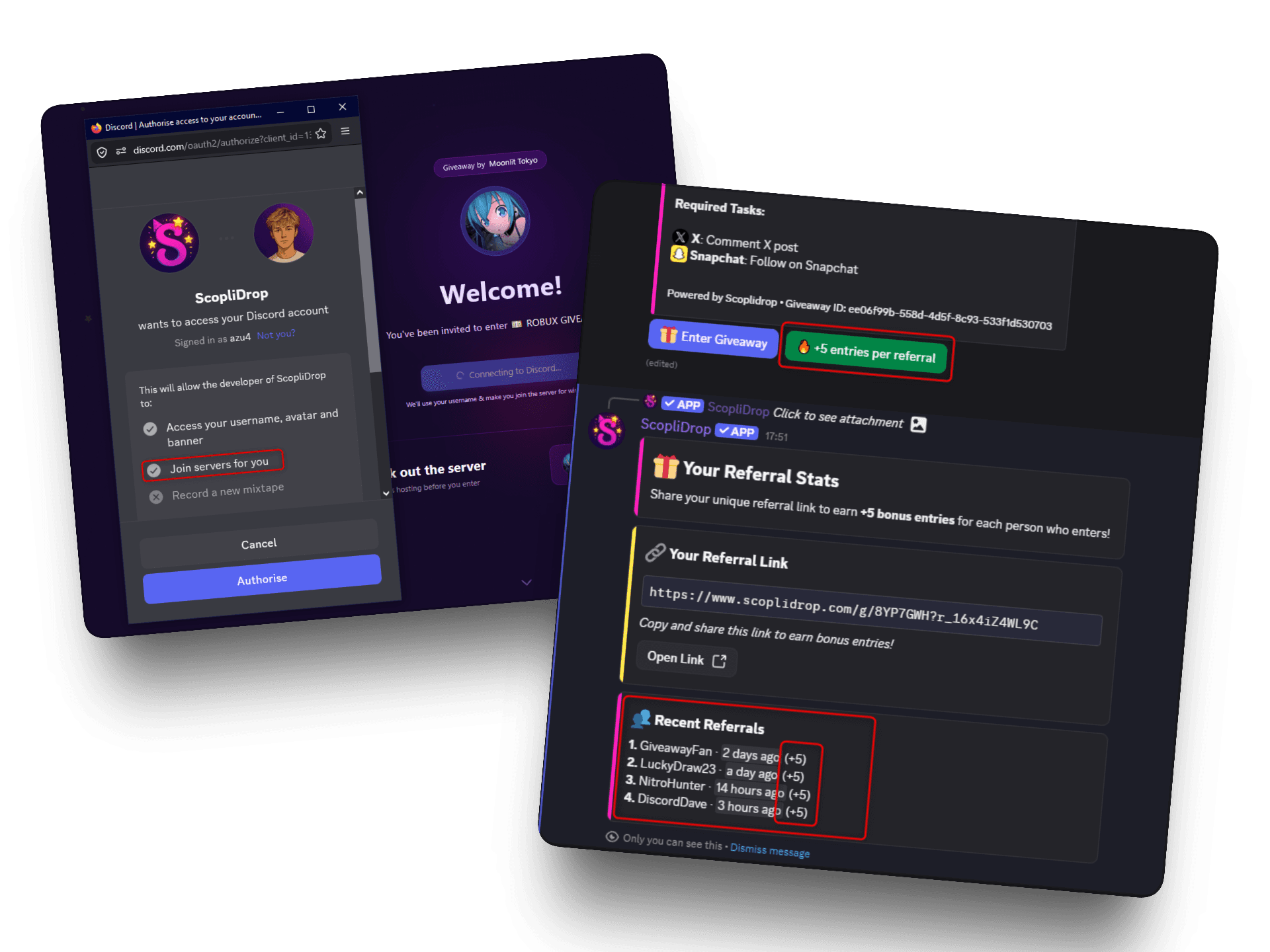
Turn on the referral system, set the bonus per referral, decide on FOMO mode, per-user caps, and unique-referrals. The full referral guide covers which settings match which goals.
- 5
Set branding, image, and role pings
Upload the giveaway image, pick the default announcement channel, set ping roles, blacklist roles, and bypass roles. Business plan users can also set custom bot profiles.
- 6
Save and name it clearly
Name the template by campaign type, not prize ("Weekly Community Giveaway" is better than "Nitro Giveaway"). You'll reuse it for different prizes over time.
Pair Templates with Scheduling for Recurring Giveaways
Templates alone save setup time. Scheduling alone automates launches. Together they're a full automation pipeline that runs without you touching the dashboard.
The workflow that most active hosts settle on:
- Build 2-3 giveaway templates that cover your main campaign types
- Every Sunday (or once a month), open the scheduling calendar
- Load the appropriate template for each upcoming launch, vary only the prize and date
- Queue as many weeks ahead as your plan allows
- The bot launches each giveaway at the scheduled time automatically
A month of weekly giveaways takes roughly five minutes of dashboard time with this workflow. Without templates or scheduling, it's closer to an hour per week, every week.
For the scheduling side of the equation, see the Discord giveaway scheduling guide which covers peak-time targeting, cadence strategy, and plan limits.
Real Use Cases
Templates pay off differently depending on how you use giveaways. These are the workflows that come up most often in practice.
Weekly Community Giveaway
The simplest pattern. One giveaway template configured for your standard community contest, used every week with a different prize. Most hosts running this setup have:
- Entry mode: base-plus-bonus (easy entry, bonus for task completion)
- Task template: 3-4 tasks around Discord engagement and primary social platform
- Referral system: enabled with 10 bonus entries per referral, per-user cap of 3
- Duration: 48-72 hours
Load template → change prize → schedule for Friday 8pm → done.
Partner-Sponsored Giveaways
When you collaborate with a brand or creator, the giveaway structure differs: sponsor's social accounts in the tasks, specific prize format, often a custom announcement channel. A separate template lets you match sponsor requirements without reinventing each time.
Build once with a placeholder sponsor, clone the template for each new partner, swap sponsor-specific tasks. Takes 2 minutes per partner instead of 20.
Product or Content Launch
For launches, giveaways often need to align with specific platforms where the launch happens. A product launch template might include:
- Website visit task (pointing to the product page)
- Email collection with Brevo integration for the launch list
- Follow on the primary social platform
- Join Discord for community support
This template gets reused for every launch in your pipeline. The landing URL and email list change per launch, the structure stays the same.
Plan Limits for Templates
Templates are available on every plan but the limits differ. The free plan is enough to feel the time savings on your first reusable template. Premium and Business support real production workflows.
| Plan | Task templates | Giveaway templates | Scheduled giveaways |
|---|---|---|---|
| Free | 3 | 3 | 1 (24h advance) |
| Premium | 10 | 10 | 2 (30-day advance) |
| Business | Unlimited | Unlimited | Unlimited |
The 10-template cap on Premium is enough for most small-to-mid communities running a few campaign types in rotation. Business lifts the cap entirely, which matters for agencies, large communities with diverse giveaway types, or anyone running weekly giveaways across multiple campaigns year-round.
Best Practices for Template Libraries
A poorly organized template library is almost as bad as no templates at all. A few habits keep it useful.
Name templates by campaign type, not prize. "Weekly Community Giveaway" is reusable forever. "Nitro Classic Giveaway" becomes confusing the moment you give away something else with the same structure.
Keep task templates separate from giveaway templates. Task templates are the atomic unit. If you find yourself rebuilding the same task lineup across multiple giveaway templates, extract it into a shared task template and reference it. Updating one place updates everything.
Refresh templates quarterly. Social platforms change, tasks become dated, new features ship. A template you built six months ago might use tasks that aren't optimal anymore. Audit the library every quarter.
Don't over-template. Three well-maintained templates beat ten stale ones. If a template hasn't been used in three months, archive it. The point is speed, not completeness.
The first template is the hardest. Build one giveaway template and one task template before trying to optimize the whole system. Most of the value shows up after the first reuse. Everything else is refinement.
Frequently Asked Questions
Set Your Giveaway Operations on Autopilot
Templates are the feature that separates hosts who run giveaways as a one-off task from hosts who run them as a reliable growth channel. Combined with scheduling, they turn giveaways from a manual weekly chore into a background engine that drives community growth while you focus on everything else.
Build your first giveaway template this week, schedule the next four launches from it, and see how much of your Sunday you get back. If your server runs giveaways with consistent defaults, promote that template to server quickstart so every new giveaway, on the dashboard and via /giveaway taskless, starts from your server's conventions automatically. The bot path uses the channel you pick at command time, not the quickstart's, so creators always have a way to redirect a giveaway from Discord.